
 Controle de entrada


Ler bilhetes com código de barras com BarcodeChecker
 BarcodeChecker
é um software com qual pode ler e conferir bilhetes de entrada com códigos de barras
ou
códigos QR. Para tal apenas precisa de um simples PC, Portátil ou Netbook por cada entrada e um
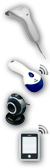
leitor de código de barras, uma webcam, Android phone ou
iPhone.
BarcodeChecker
é um software com qual pode ler e conferir bilhetes de entrada com códigos de barras
ou
códigos QR. Para tal apenas precisa de um simples PC, Portátil ou Netbook por cada entrada e um
leitor de código de barras, uma webcam, Android phone ou
iPhone.
Os bilhetes para o seu evento serão lidos na entrada e o seu código de barras será testado acerca da validade. Já que cada código de barras apenas pode ser utilizado uma vez, os bilhetes copiados serão rejeitados. Ou pode conferir os bilhetes de entrada que foram impressos com TicketCreator ou outros códigos de barras com até 200 algarismos ou símbolos.
|
Descarregar versão de avaliação Testar gratuitamente. Função limitada. |
Comprar BarcodeChecker Apenas €299,- (Brasil Real) |
Opção 1: Conferir bilhetes com código de barras TicketCreator
 |
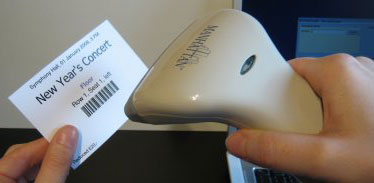
Bilhetes de entrada com código de barras que imprimiu com TicketCreator podem facilmente ser conferidos com o software de BarcodeChecker. O BarcodeChecker está incluído na licença da TicketCreator Barcode-Edition, portanto pode utilizar o software de BarcodeChecker gratuitamente. |
Show step-by-step instructions.
1.) Start the TicketCreator software and create the location for the event. You can skip this point for events that have only tickets with serial numbers.
2.) Create an event in the location and activate the option 'Barcodes'.
3.) Print tickets.
4.) Use the menu 'Events - Save BarcodeChecker file' to create the BarcodeChecker file of the event.
A) If you use a single PC to scan:
5.) Copy the BarcodeChecker file to the PC that is used to check tickets at the entrance.
6.) Start the BarcodeChecker software on the PC, click 'Scan', and open the BarcodeChecker file of the event.
7.) Now you can control the barcodes on the tickets.
B) If you use multiple PCs to scan:
5.) Copy the BarcodeChecker file to the PC that is used as server and to all PCs that are used to check tickets at the entrance.
6.) Start the BarcodeChecker software on the server PC, click 'Server', and open the BarcodeChecker file of the event.
7.) Start the BarcodeChecker software on all scanner PCs, click 'Scan', open the BarcodeChecker file, and connect the PCs to the server.
8.) Now you can control the barcodes on the tickets.
C) If you use phones to scan:
5.) Copy the BarcodeChecker file to the PC that is used as server.
6.) Start the BarcodeChecker software on the server PC, click 'Server', and open the BarcodeChecker file of the event.
7.) Start the BarcodeChecker app on the phones and connect them to the server.
8.) Now you can control the barcodes on the tickets.
Opção 2: Ler outros bilhetes com código de barras
 |
Também pode ler e conferir outros bilhetes que tenham código de barras com até 200 algarismos ou símbolos. Para isso pode importar a lista dos códigos de barras como ficheiro Excel, ficheiro CSV (p. ex. do Excel) ou como ficheiro de texto e daí criar um ficheiro BarcodeChecker no TicketCreator. Para isso necessita de uma licença para a TicketCreator Barcode Edition. |
Show step-by-step instructions.
1.) Save the ticket numbers as Excel file, CSV file (Comma delimited, *.csv, e.g. from Excel) or text file (Tab delimited, *.txt). You can skip this point if you have serial numbers (e.g. 1-1000).
Example 1: Save list of barcodes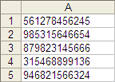 |
Example 2: Save barcodes with additional data, e.g. ticket types, names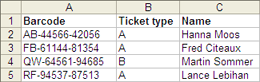 |
A) If you use a single PC to scan:
2.) Start the BarcodeChecker software on the PC that is used to scan and click 'Scan'.
3.) Open the Excel file, CSV file, or text file or enter the serial numbers. Save the BarcodeChecker file for this event.
4.) Open the BarcodeChecker file.
5.) Now you can control the barcodes on the tickets.
B) If you use multiple PCs to scan:
2.) Start the BarcodeChecker software on the PC that is used as server and click 'Server'.
3.) Open the Excel file, CSV file, or text file or enter the serial numbers. Save the BarcodeChecker file for this event.
4.) Open the BarcodeChecker file and start the server.
5.) Copy the BarcodeChecker file to all PCs, which are used to check tickets at the entrance.
6.) Start the BarcodeChecker software on all scanner PCs, click 'Scan', open the BarcodeChecker file, and connect the PCs to the server.
7.) Now you can control the barcodes on the tickets.
C) If you use phones to scan:
2.) Start the BarcodeChecker software on the PC that is used as server and click 'Server'.
3.) Open the Excel file, CSV file, or text file or enter the serial numbers. Save the BarcodeChecker file for this event.
4.) Open the BarcodeChecker file and start the server.
5.) Start the BarcodeChecker app on the phones, and connect them to the server.
6.) Now you can control the barcodes on the tickets.
Scanear com leitor de código de barras e PCs
O TicketCreator utiliza códigos de barras no formato ‘Code 2 of 5 interleaved’ ou ‘Code 3 of 9’ que são lidos por todos os leitores de código de barras usuais, ou códigos QR.
 Leitor de código de barras com cabo
Leitor de código de barras simples com conexões USB ou PS/2 à venda no comércio.
 Leitores de código de barras sem cabo
Se quer ler bilhetes sem estar ligado a fios pode utilizar um leitor sem fios Bluetooth com conexão USB ou PS/2 (p. ex. o
MS9535 Voyager).
Ligue o scanner num simples PC, Portátil ou Netbook, que trabalha sob Windows 7, Windows 8, Windows 10 ou Windows 11. Outros sistemas operacionais como Windows Phone/CE/Mobile/RT não são sustentados.
Scanear com app para Android, iPhones ou iPads

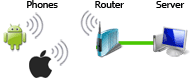 You can also use Android phones
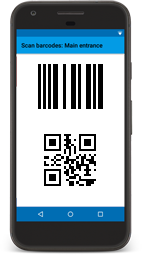
or iPhones/iPads to scan tickets with barcodes or QR codes.
Install the free BarcodeChecker app
and connect the phones to a PC, which runs the BarcodeChecker software as server.
An internet connection is not required. More...
You can also use Android phones
or iPhones/iPads to scan tickets with barcodes or QR codes.
Install the free BarcodeChecker app
and connect the phones to a PC, which runs the BarcodeChecker software as server.
An internet connection is not required. More...
Webcam / Câmara Web
 Também pode ler os bilhetes com código de barras com uma webcam, porém deve prestar atenção que tenha iluminação suficiente e focalizar a câmara por cima dos bilhetes. Em geral, os
leitores de código de barras são mais fiáveis e mais fáceis de manusear que as webcams.
Também pode ler os bilhetes com código de barras com uma webcam, porém deve prestar atenção que tenha iluminação suficiente e focalizar a câmara por cima dos bilhetes. Em geral, os
leitores de código de barras são mais fiáveis e mais fáceis de manusear que as webcams.
Controles de entrada com vários leitores/webcams: Com ou sem rede
 Se no controle de entrada quer utilizar vários scanners de código de barras ou webcams, pode exercitar o software de gestão de entrada BarcodeChecker numa rede local.
Para isso necessita apenas de um router.
Se no controle de entrada quer utilizar vários scanners de código de barras ou webcams, pode exercitar o software de gestão de entrada BarcodeChecker numa rede local.
Para isso necessita apenas de um router.
Se o seu local tiver várias entradas, pode mesmo ler e conferir os bilhetes com código de barras sem rede, independentemente, com um PC por cada entrada. Mais...