



BarcodeChecker App for Android and iOS
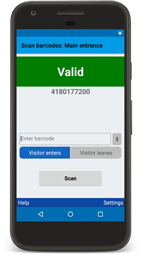
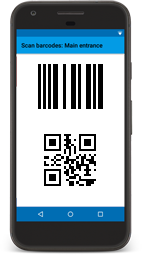 The BarcodeChecker apps
for Android an iOS allow you to scan and check tickets with
barcodes or QR codes with one or multiple smartphone(s).
The BarcodeChecker apps
for Android an iOS allow you to scan and check tickets with
barcodes or QR codes with one or multiple smartphone(s).
Scan barcode tickets printed with TicketCreator or any other barcodes from an Excel file.
 |
Android app for Android smartphones with Android 5 or later |
 |
iOS app for iPhone, iPad, iPod touch with iOS8 or later. |
Requirements
All smartphones must be connected to a Windows PC (Windows 7, Windows 10 or Windows 11), which runs the BarcodeChecker software as server.
The BarcodeChecker app is free, however, you need the TicketCreator Barcode edition or a BarcodeChecker license to run the server. You can test the server in demo mode.
A WiFi router is recommended.
Supported barcodes and QR codes
 The apps
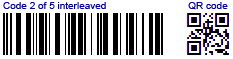
read barcodes and QR codes with up to 300 characters.
The apps
read barcodes and QR codes with up to 300 characters.
The camera of the phone is ideal to read QR codes. You can also use it to read 1D barcodes but that can be slow and inconvenient.
| Barcode types |
| QR codes |
| Code 39/93/128, UPC-A/E, EAN-8/13, PDF 417 |
| Code 2 of 5 interleaved, Data Matrix, Aztec |
Barcode scanners that are connected to your phone by Bluetooth read 1D or 2D barcodes much quicker and more reliably than the camera of your phone. See below for details.
There are three ways to connect the phones to the server PC
 A.) Direct
connection to router
(recommended)
A.) Direct
connection to router
(recommended)
Connect the server PC to a WiFi router and create a secure local network. Then connect the smartphones directly to that WiFi router to get a fast and robust connection. More...
 B.) Direct
connection to virtual router software
(not recommended)
B.) Direct
connection to virtual router software
(not recommended)
Install a virtual router software on the server PC and use the internal WiFi card as router. Then connect the smartphones directly to that virtual router. Caution: Performance and reliability can be lower than with a hardware router. More...
 C.)
Connection over internet (not
recommended, experts only)
C.)
Connection over internet (not
recommended, experts only)
If the phones have a fast and reliable internet connection the whole time while scanning, you can also connect to the server over the internet. Caution: This connection is failure-prone (if you have a weak signal) and you must create a port forwarding on your router!
Scan barcode tickets
1.) Install the respective app on your smartphone.

 |
|
If your devices does not have a Google Play Store, you can install the app manually. |
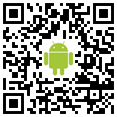
 Scan the QR code on the right to install the

 |
|
|

2.) Start BarcodeChecker server on PC
- Install the BarcodeChecker software on a PC (Download).
- Create the BarcodeChecker file for the event, which contains all barcodes.
Show instructions.
A.) For tickets, which have been printed with TicketCreator:
1.) Start the TicketCreator software on the PC, which was used to print the tickets.
2.) Select the event in the list and click the menu 'Events - Save BarcodeChecker file', to create the BarcodeChecker file for this event.
3.) Copy the BarcodeChecker file to the server PC.
B.) For other barcodes:1.) Start the BarcodeChecker software on the server PC, and click 'Start server'.
2.) Open the Excel, CSV or text file with the barcodes, or enter the serial numbers.
3.) Save the BarcodeChecker file.
- Start the BarcodeChecker as server on the server PC and open the BarcodeChecker file.
3.) Setup router
If phones connect directly to router
(recommended)
- CConnect the PC to a WiFi router and create a local WiFi network. An internet connection is not required.
If phones connect over the internet
(not recommended, experts only)
- Create a port forwarding on your router and forward the selected port (default: port 7610) to the network IP that is shown in BarcodeChecker.
44.) Connect smartphone to server
- Connect your mobile by WiFi directly to the router (recommended), or to the internet.
- Start the BarcodeChecker app.
- Enter the IP address and the port of the server or press
 to
scan the QR code in the BarcodeChecker server window.
to
scan the QR code in the BarcodeChecker server window. - Enter the password and the name of the entrance, then connect.
- If you log in without QR code: Go to server PC and press 'Accept' on the server within 10 seconds (only for first connection). This is not required when using the QR code to log in.

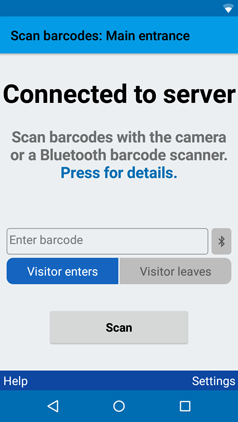
5.) Scan tickets (with camera)
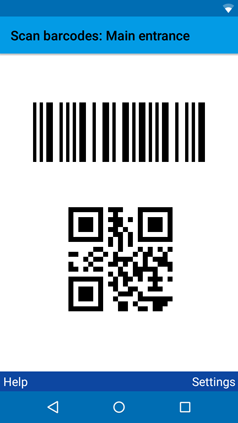

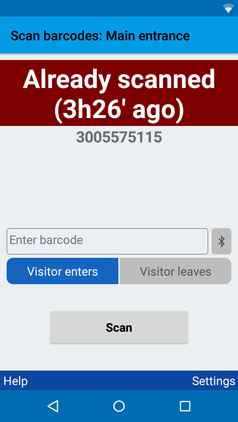
- Press 'Scan' and scan a barcode with the camera. The result is shown on the display. Additionally, a sound is played and the phone vibrates if the ticket is invalid.
- If a barcode cannot be scanned, you can enter the value manually.
- TThe smartphone must be connected to the server the whole time. Scanned barcodes are immediately saved, i.e. tickets cannot be used multiple times even if the smartphone or PC must be restarted.
Scan tickets with a Bluetooth scanner (recommended for 1D barcodes)
The built-in cameras of smartphones are useful to read QR codes but can be slow and inconvenient when reading 1D barcodes. Therefore, it is recommended to read 1D barcodes with a wireless Bluetooth barcode scanner that is connected to your smartphone.
We recommend scanner from Socket Mobile or CipherLab. But you can use also other Bluetooth scanners.
A) Barcode scanners that are attached to the phone for a one-handed solution:
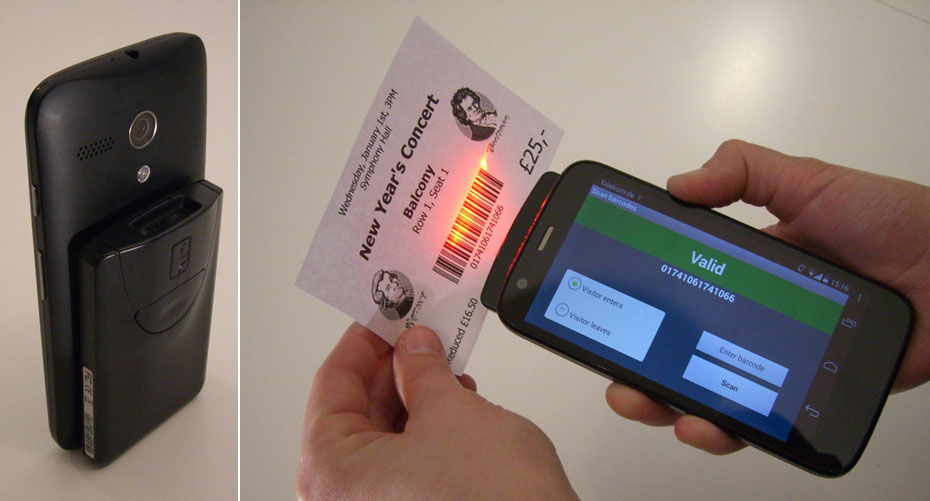
Socket Mobile S800 (for 1D barcodes, prices, SocketStore)
B) Handheld barcodes scanners:
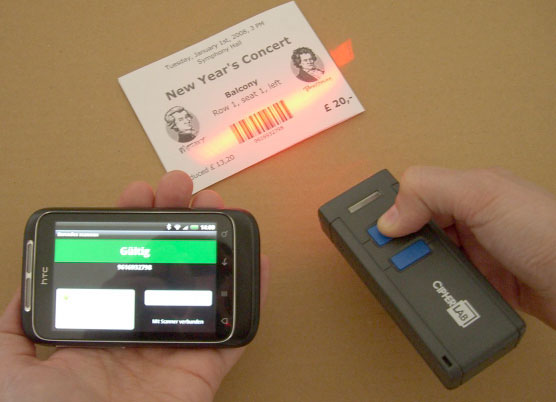
- CipherLab 1660 (for 1D barcodes, prices)
- CipherLab 1664 (for 2D barcodes, prices)
- Socket Mobile S700 (for 1D barcodes, prices, SocketStore)
- Socket Mobile S740 (for 2D barcodes, prices, SocketStore)
How to use Bluetooth scanner: Show instructions for Android or iOS/iPhones.
Android devices with built-in scanners
The BarcodeChecker app can also be used on some Android devices with built-in scanners, for example the Unitech PA700 or Motorola MC40/TC55.
On devices without the Google Play Store you can install the app manually.